
Why website speed matters: boost conversions and trust
Discover why website speed matters for NZ small businesses. Learn how faster load times boost conversions, build trust, and improve your Google r...

Setting up a WordPress website can feel overwhelming for small business owners in New Zealand who lack technical expertise. You want an online presence that attracts customers, but the process seems complicated with hosting, domains, plugins, and configuration. This guide breaks down WordPress setup into clear, manageable steps that anyone can follow. By the end, you’ll have a professional website that enhances your online presence and helps you reach more customers across New Zealand.
| Point | Details |
|---|---|
| Prerequisites count upfront | Ensuring you have a domain, hosting and admin access ready helps you avoid delays during WordPress setup. |
| Follow step by step | Using the installer and guided steps keeps you on track and reduces common mistakes. |
| Verify site setup | Check that the site loads correctly, permalinks are SEO friendly, and essential plugins are active. |
| Optimise WordPress | Optimise your WordPress site by installing caching and security plugins and an SEO plugin to improve performance and visibility. |
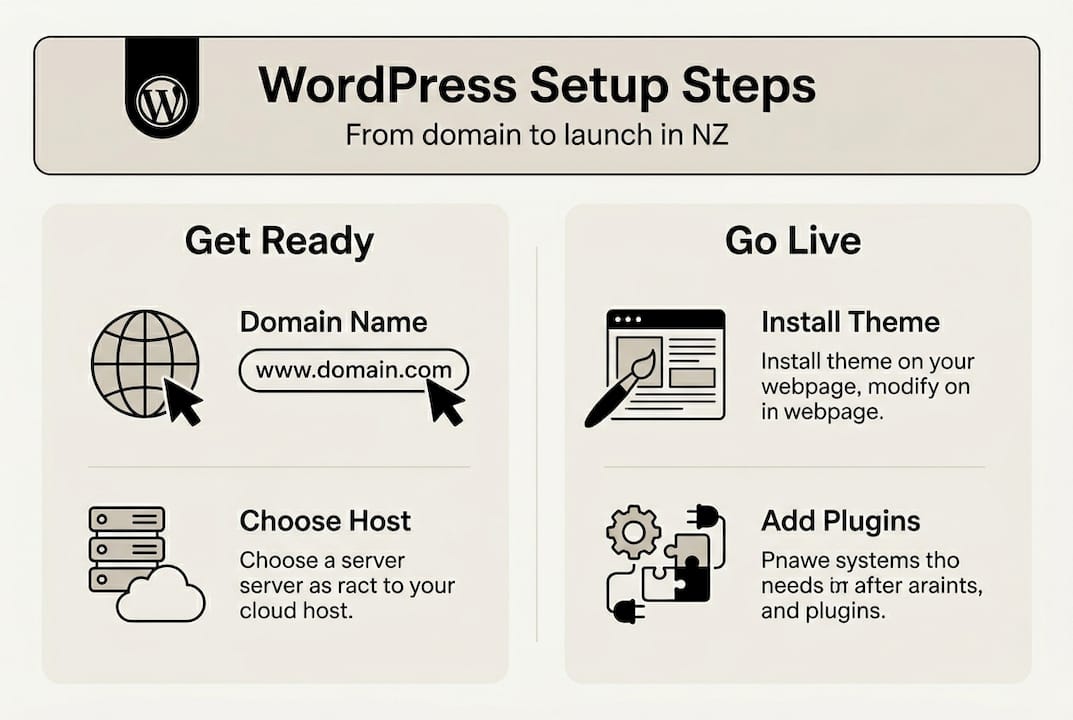
Before diving into WordPress installation, gather your essential tools and accounts. Having the right hosting and domain is essential for WordPress setup success. Proper preparation prevents frustration and ensures a smooth setup process.
Start by choosing and registering a domain name that reflects your business. Your domain should be memorable, easy to spell, and relevant to your services. Select a reliable hosting service suitable for New Zealand businesses, considering factors like local server locations, customer support hours, and uptime guarantees.
Familiarise yourself with cPanel or your hosting dashboard basics. Most hosting providers offer tutorials or guided tours. Understanding where to find key features saves time during installation. WordPress.org offers full control and customisation, while WordPress.com is a hosted service with limitations. This guide focuses on WordPress.org for maximum flexibility.
Essential items checklist:
| Hosting feature | Why you need it | Typical cost (NZ) |
|---|---|---|
| Storage space | Stores website files and media | 10GB minimum |
| Bandwidth | Handles visitor traffic | Unlimited preferred |
| SSL certificate | Secures customer data | Often included |
| Email accounts | Professional communication | 5-10 accounts |
| Backup service | Protects against data loss | Daily backups ideal |
Prepare your content strategy before installation. Outline what information each page will contain and gather any images or text you’ll need. Having content ready speeds up the setup process significantly.
Pro Tip: Choose hosting providers with one-click WordPress installers and 24/7 support based in New Zealand or Australia. This ensures help is available during your business hours and understands local business needs.
With your prerequisites ready, installing WordPress becomes straightforward. Following a clear installation process is vital to avoid common setup errors. Most hosting providers offer automated installers that handle technical details for you.
Installation process:
Once installation finishes, you’ll receive a confirmation with your WordPress admin URL, typically yoursite.co.nz/wp-admin. Bookmark this page for easy access. Log in immediately and change any default settings.
Configure your permalink structure for SEO-friendly URLs. Navigate to Settings, then Permalinks, and select “Post name” structure. This creates clean URLs like yoursite.co.nz/services instead of yoursite.co.nz/?p=123, which search engines and users prefer.
Install essential plugins to protect and optimise your site. Start with a security plugin like Wordfence, a caching plugin like WP Super Cache, and an SEO plugin like Yoast SEO. Each plugin adds specific functionality without requiring coding knowledge.
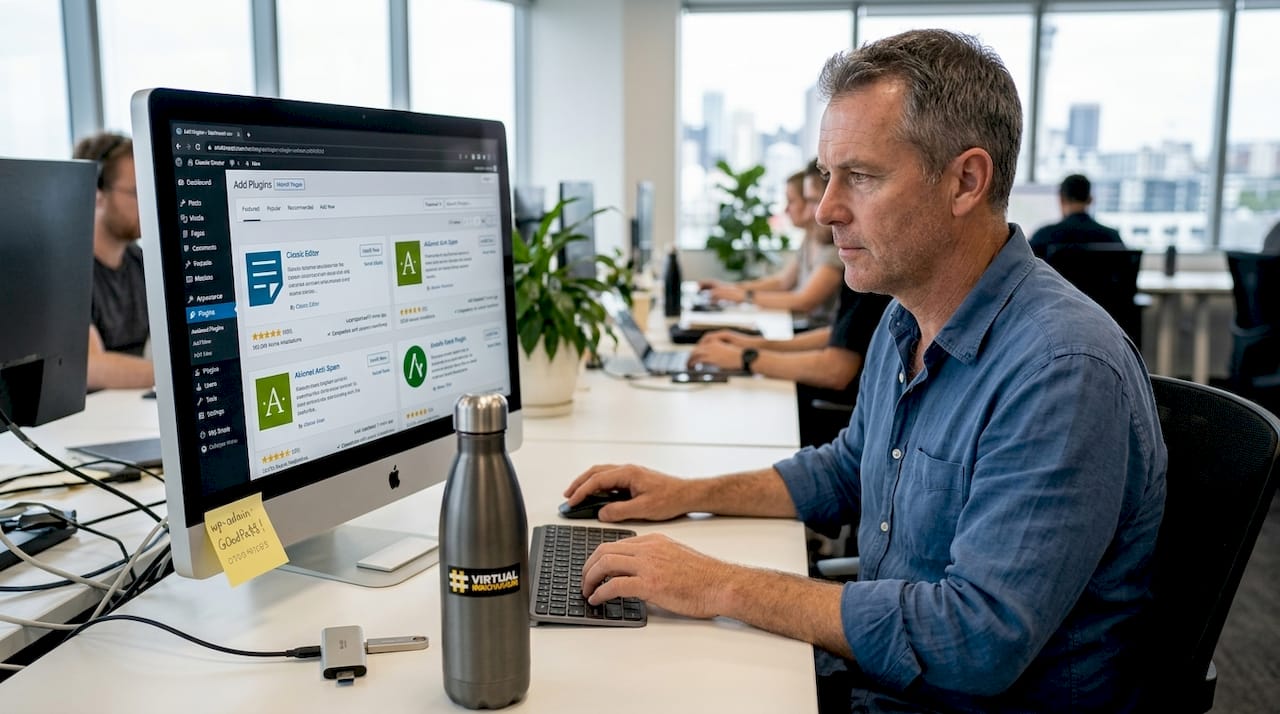
Pick and install a responsive theme suitable for service businesses. Navigate to Appearance, then Themes, and browse the WordPress repository. Look for themes labelled “responsive” or “mobile-friendly” with good ratings and recent updates. Install and activate your chosen theme.
Set up your key pages immediately. Create Home, About, Services, and Contact pages through Pages, then Add New. Add placeholder content if you’re not ready to write full content yet. You can refine these pages later.
Pro Tip: Backup your website immediately after initial setup using a plugin like UpdraftPlus. This creates a clean baseline you can restore if anything goes wrong during customisation.
“A well-configured WordPress installation provides the foundation for everything else you’ll build. Take time to get the basics right before adding complexity.”
Your WordPress installation is functional, but customisation makes it uniquely yours. Custom themes and optimisation make WordPress sites stand out and improve usability for potential customers. Focus on branding, performance, and user experience.
Compare page builder plugins with the native block editor. The Gutenberg block editor offers simplicity and speed, while page builders like Elementor provide drag-and-drop flexibility. For most service businesses, the native editor provides sufficient customisation without performance overhead.
Add your branding elements consistently across the site. Upload your logo through Appearance, then Customise, and look for the site identity section. Set your brand colours and fonts in the customiser to maintain visual consistency. Most themes allow colour and typography customisation without touching code.
Image optimisation checklist:
| Optimisation method | Performance impact | Ease of implementation |
|---|---|---|
| Image compression | High | Easy |
| Caching plugin | Very high | Easy |
| Minify CSS/JS | Medium | Medium |
| CDN integration | High | Medium |
| Database optimisation | Medium | Advanced |
Configure your caching plugin to store static versions of pages. This dramatically reduces server load and speeds up page delivery. Most caching plugins work well with default settings, but enable browser caching and GZIP compression for additional performance gains.
Implement basic SEO settings through your SEO plugin. Set default meta titles and descriptions, generate an XML sitemap, and submit it to Google Search Console. Configure social media previews so your pages look professional when shared on platforms like Facebook and LinkedIn.
Test your site’s responsiveness on different devices. Use your phone, tablet, and desktop to navigate through pages. Check that menus work properly, images scale correctly, and text remains readable. Most modern themes handle responsiveness automatically, but verification prevents customer frustration.
Install Google Analytics or a privacy-friendly alternative like Plausible to track visitor behaviour. Understanding which pages attract traffic and how visitors navigate your site informs future improvements. Set up goal tracking for contact form submissions or phone number clicks.
Verification ensures your WordPress site functions correctly before announcing it to customers. Putting in place verification steps and knowing common fixes speeds up resolving issues. Systematic testing catches problems early.
Test every link on your site manually. Click through navigation menus, footer links, and any internal links within content. Broken links frustrate visitors and harm SEO rankings. Use a plugin like Broken Link Checker to automate ongoing monitoring.
Check your website speed using tools like Google PageSpeed Insights or GTmetrix. These tools provide specific recommendations for improvement. Aim for load times under three seconds on mobile and desktop. Slow sites lose visitors and rank lower in search results.
Mobile-friendly verification steps:
Review your security settings thoroughly. Change default usernames, use strong passwords, and enable two-factor authentication if available. Limit login attempts to prevent brute force attacks. Update WordPress core, themes, and plugins regularly to patch security vulnerabilities.
Common issues and quick fixes include the white screen of death, usually caused by plugin conflicts. Deactivate all plugins through FTP or hosting file manager, then reactivate them one by one to identify the culprit. Plugin conflicts often occur after updates, so test updates on a staging site first.
Update failures typically result from insufficient memory or file permission issues. Increase PHP memory limit through your hosting control panel or contact support for assistance. Ensure file permissions are set correctly, typically 755 for directories and 644 for files.
Keep regular backups scheduled automatically. Daily backups for active sites, weekly for static sites. Store backups off-site, not just on your hosting server. This protects against server failures, hacking, or accidental deletions.
Pro Tip: Create a staging site where you can test changes, updates, and new plugins before applying them to your live site. Many hosting providers offer staging environments with one-click deployment to production.
Setting up WordPress yourself builds valuable knowledge, but professional help saves time and delivers polished results. Virtual Innovation specialises in WordPress website design for New Zealand small businesses, handling everything from initial setup to ongoing optimisation.

Our expert WordPress developers understand the unique challenges facing Kiwi service businesses. We customise sites to match your brand perfectly, implement advanced SEO strategies, and ensure mobile-friendly designs that convert visitors into customers. Professional setup eliminates costly mistakes and gets your site live faster.
We know you’re busy running your business and don’t have time to become a WordPress expert. Our friendly, down-to-earth team explains everything in plain language and makes the process stress-free. Contact us today to discuss how we can enhance your online presence and help you reach more customers throughout New Zealand.
Typically, a basic WordPress site can be set up in a few hours if you have all prerequisites ready. This includes installation, theme selection, and creating essential pages. Complex customisations, e-commerce functionality, or custom design work will add several days to weeks depending on requirements.
WordPress.org is self-hosted software offering full control over customisation, plugins, and themes. You manage your own hosting and have complete ownership. WordPress.com is a hosted service that handles technical details but limits plugin access and customisation options unless you pay for premium plans.
Yes, WordPress supports e-commerce functionality through plugins like WooCommerce. You can sell products, manage inventory, process payments, and handle shipping. Professional help simplifies the setup process and ensures secure payment integration that complies with New Zealand regulations.
No coding knowledge is required for basic WordPress management. The visual editor and pre-built themes handle most needs. However, understanding HTML and CSS basics helps with minor customisations. For complex functionality, plugins provide code-free solutions or you can hire developers for specific requirements.
Hosting costs range from $10 to $50 monthly for small business sites, depending on traffic, storage, and features. Shared hosting suits most starting businesses, while growing companies may need VPS or dedicated hosting. Factor in domain registration ($20-40 annually) and premium plugins or themes if required.