
Google Chrome:
- Open Chrome:
- Launch the Google Chrome browser on your computer.
- Access Settings:
- Click on the three vertical dots in the top-right corner to open the menu.
- Select “Settings.”
- Navigate to Privacy and Security:
- Scroll down and click on “Privacy and security” in the left sidebar.
- Scroll down and click on “Privacy and security” in the left sidebar.
- Clear Browsing Data:
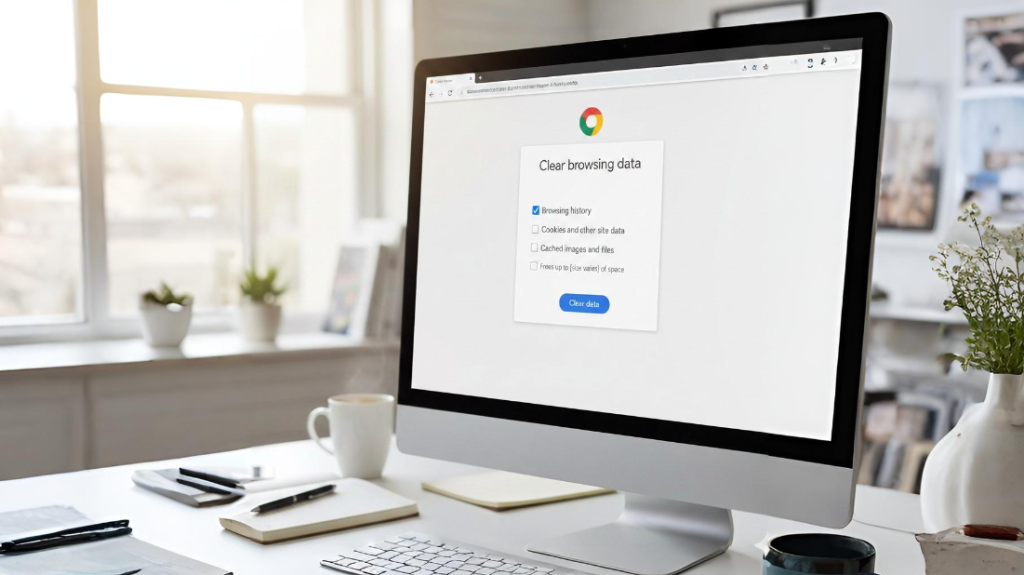
- Under “Privacy and security,” click on “Clear browsing data.”
- Under “Privacy and security,” click on “Clear browsing data.”
- Choose Time Range:
- Select the time range for which you want to clear the cache (e.g., “Last hour,” “Last 24 hours,” “All time”).
- Select the time range for which you want to clear the cache (e.g., “Last hour,” “Last 24 hours,” “All time”).
- Select Data Types:
- Make sure “Cached images and files” is selected.
- You can also choose other types of data to clear if needed.
- Clear Data:
- Click on “Clear data” to delete the selected cache.
- Click on “Clear data” to delete the selected cache.